Modern businesses operate across multiple platforms – CRM, accounting, marketing, collaboration, and payment systems. Without proper integration, teams waste time switching between tools, duplicating data, and dealing with inconsistencies.
This is where Zoho integrations become a game changer.
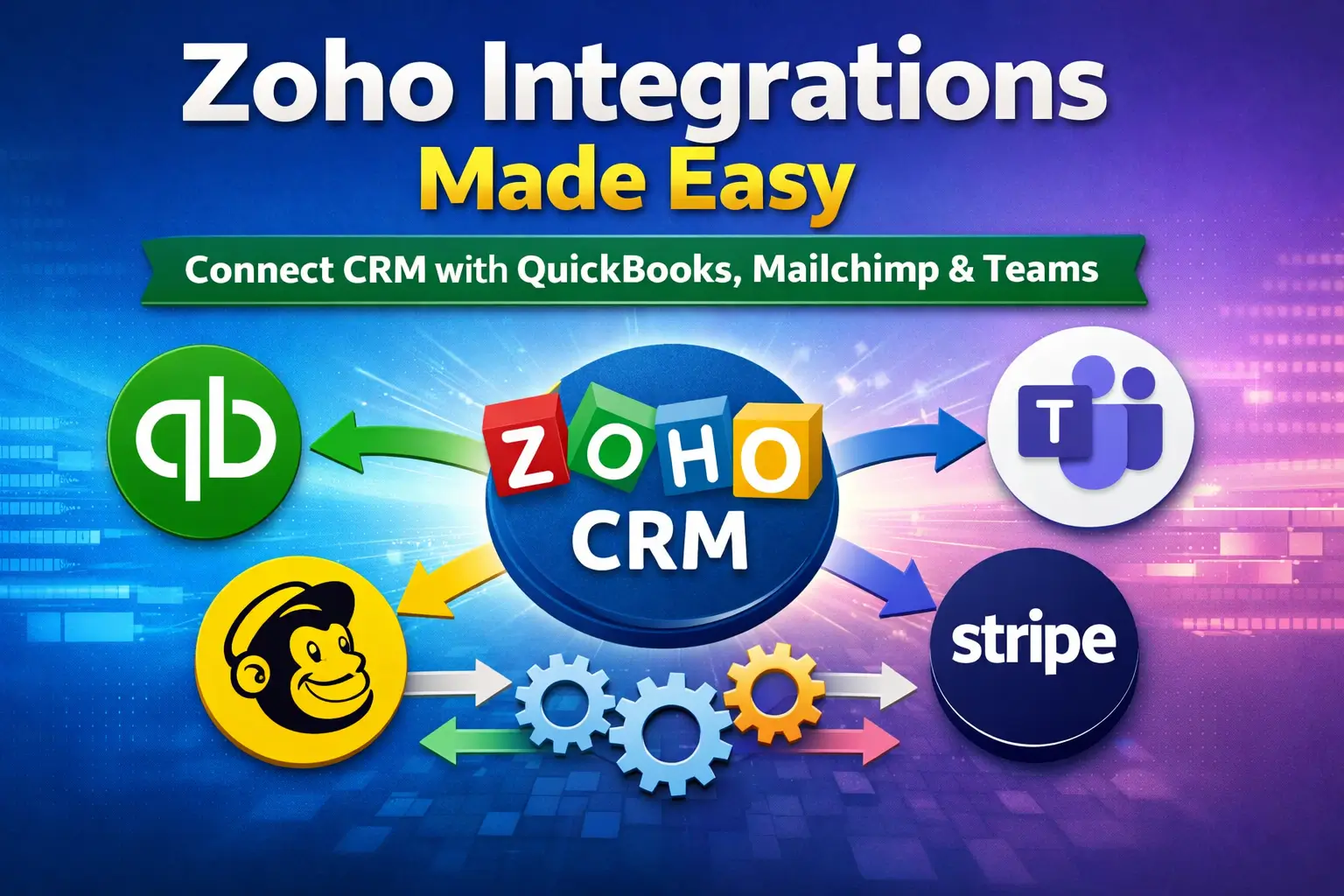
Zoho is not just a CRM – it’s a complete ecosystem. Whether you’re using Zoho CRM, Zoho Books, Zoho Campaigns, or Zoho Desk, you can seamlessly connect them with third-party platforms like QuickBooks, Mailchimp, Microsoft Teams, and more.
In this guide, you’ll learn:
- How Zoho integrations work
- Which tools you can connect
- Real-world automation use cases
- Step-by-step integration approach
- Best practices for scalable automation

Can Zoho Integrate with Other Tools?
Yes – and this is one of Zoho’s biggest strengths.
Zoho supports integrations through:
- Native integrations (built-in connectors)
- Zoho Flow (low-code automation platform)
- Custom API integrations (Deluge + REST APIs)
This flexibility allows you to:
- Avoid vendor lock-in
- Keep your existing tools
- Build a centralized system with Zoho CRM as the hub
Why Zoho Integrations Matter
Without integration:
- Data is duplicated across systems
- Manual errors increase
- Teams lose productivity
- Reporting becomes unreliable
With proper integration:
- Data flows automatically between systems
- CRM becomes the single source of truth
- Teams collaborate more effectively
- Business processes become automated
Example Problem:
A sales rep:
- Checks emails
- Updates CRM
- Verifies invoices in accounting software
- Notifies team manually
After Integration:
- Lead captured -> CRM updated automatically
- Invoice created -> synced with accounting
- Notification sent -> Teams/Slack instantly
- Email campaign triggered -> no manual work
Zoho Native Ecosystem (50+ Apps Working Together)
One of Zoho’s biggest advantages is its tightly connected ecosystem.
Key Native Integrations:
| Function | Zoho App |
|---|---|
| CRM | Zoho CRM |
| Accounting | Zoho Books |
| Marketing | Zoho Campaigns |
| Support | Zoho Desk |
| Analytics | Zoho Analytics |
| Projects | Zoho Projects |
Example Workflow:
- Lead enters Zoho CRM
- Added to Zoho Campaigns for nurturing
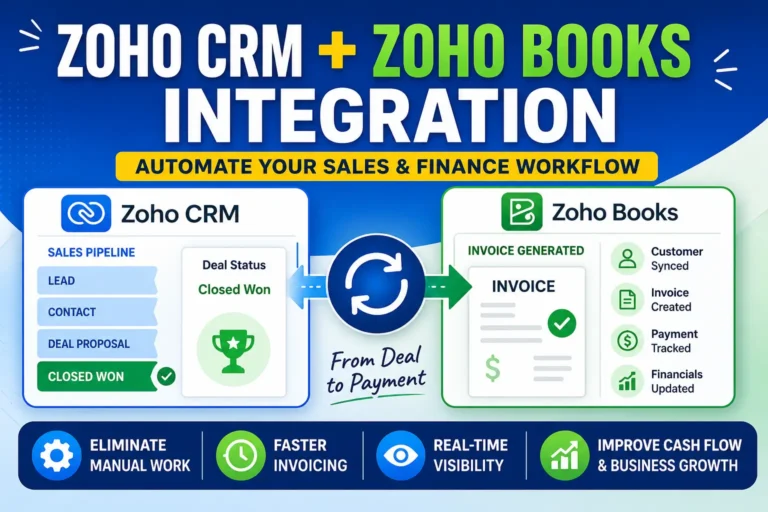
- Deal closed -> Invoice generated in Zoho Books
- Support ticket created in Zoho Desk
- Data analyzed in Zoho Analytics
This creates a fully connected digital ecosystem.
Popular Third-Party Zoho Integrations
Most businesses already use external tools. Zoho integrates with them seamlessly.
1. Finance Integrations
- QuickBooks
- Xero
- Sage
Use Case:
- Sync invoices, payments, and customer data between Zoho CRM and accounting software.
2. Marketing Integrations
- Mailchimp
- Eventbrite
Use Case:
- Sync CRM contacts with email campaigns
- Automate lead nurturing sequences
. Collaboration Tools
- Microsoft Teams
- Slack
Use Case:
- Real-time notifications when:
- New lead is created
- Deal stage changes
- Support ticket is opened
4. Payment Gateways
- Stripe
- PayPal
Use Case:
- Automatically update CRM when payments are completed
- Trigger workflows after successful transactions
Integration Methods Explained
1. Zoho Flow (Recommended for Most Businesses)
Best for: No-code / low-code automation
Features:
- Drag-and-drop workflows
- Pre-built connectors
- Conditional logic
Example Flow:
Trigger: New Lead in Zoho CRM
Action: Add subscriber to Mailchimp
Action: Send Teams notification
Action: Create task in Zoho Projects
2. Zapier (Alternative Integration Tool)
Best for: Quick integrations with many apps
Limitations:
- Monthly cost
- Limited customization compared to Zoho Flow
3. Custom API Integration (Advanced)
Best for: Complex business logic
Technologies Used:
- Deluge scripting
- REST APIs
- Webhooks
- Node.js middleware (optional)
Example (Deluge API Call)
response = invokeurl
[
    url :"https://api.mailchimp.com/3.0/lists/{list_id}/members"
    type :POST
    parameters: {"email_address":input.Email, "status":"subscribed"}
    connection:"mailchimp_connection"
];
Real Business Use Case
Automated Lead-to-Cash Workflow
Scenario:
- User submits website form
- Lead created in Zoho CRM
- Auto email sent via Zoho Campaigns
- Sales team notified in Microsoft Teams
- Deal closed
- Invoice generated in Zoho Books
- Synced with QuickBooks
- Payment received via Stripe
- CRM updated automatically
Result:
- Zero manual data entry
- Faster sales cycle
- Real-time visibility
Step-by-Step: How to Integrate Zoho with Third-Party Tools
Step 1: Identify Business Workflow
- What data needs to move?
- Which systems are involved?
Step 2: Choose Integration Method
- Simple: Zoho Flow
- Medium: Native connectors
- Complex: Custom API
Step 3: Map Data Fields
- Match CRM fields with external system fields
Step 4: Build Automation
- Create triggers and actions
Step 5: Test Integration
- Validate data accuracy
- Check edge cases
Step 6: Monitor & Optimize
- Track failures
- Improve workflows over time
Best Practices for Zoho Integrations
- Use Zoho CRM as the central hub
- Avoid duplicate integrations
- Standardize field naming conventions
- Use error handling in workflows
- Log API responses for debugging
- Secure API connections using OAuth
FAQs
Does Zoho integrate with QuickBooks?
Can Zoho connect with Microsoft Teams?
Do I need Zapier?
Can Zoho integrate with Stripe or PayPal?
What if I use a niche system?
Final Thoughts
Zoho integrations are not just about connecting tools – they’re about building a unified business system.
Whether you:
- Use the full Zoho ecosystem
- Or connect Zoho with external tools
The goal is the same:
Eliminate manual work, improve data accuracy, and scale efficiently.
Read More:
- How Zoho MCP Works: The Future of AI Automation in Zoho One
- How Zoho CRM Q1 2026 Updates Improve Sales Productivity with AI, WorkQueue & Smart Automation
- Zoho CRM Widget API Integration with Nexphone
- Zoho CRM Widget Integration with Zoho Backstage: Manage Event Attendees Directly from CRM
- Zoho CRM Marketing Automation Integration: Complete Guide
- How to Convert Zoho Books Invoice to PDF and Automatically Upload to Zoho WorkDrive